1. What Are Hooks in Claude Code and Why You Need Them
When working with terminal AI agents, developers frequently find themselves typing the same repetitive instructions: "now run ESLint", "format the code with Prettier", "check TypeScript types before committing". Even when added to CLAUDE.md, large language models can occasionally overlook these instructions or skip them to conserve output tokens.
Hooks in Claude Code solve this problem at the infrastructure level: they are deterministic triggers that automatically run system commands or scripts at exact lifecycle moments during an agent's execution.
The core philosophy of hooks is straightforward:
Whenever Claude performs event X → the operating system deterministically runs action Y.
Comparing Automation Approaches
| Feature | Manual Prompts | Rules in CLAUDE.md | Native Claude Code Hooks |
|---|---|---|---|
| Execution Reliability | Low (depends on human memory) | Moderate (probabilistic LLM behavior) | 100% (deterministic event interception) |
| Token Consumption | High (consumes prompt tokens each time) | Moderate (loaded into every system prompt) | Zero (runs locally via subshell) |
| Response Speed | Slow (requires manual typing) | Requires extra model turn | Instant (native process invocation) |
| Blocking Capabilities | None | None | Yes (non-zero exit code halts operation) |
Claude Code hooks are configured as JSON objects inside .claude/settings.json at the project level, or globally in ~/.claude/settings.json.
2. Event Lifecycle: PreToolUse, PostToolUse, Notification, and Stop
Claude Code exposes four foundational lifecycle events where you can attach automated commands.
Primary Event Hooks
PreToolUse(Before tool execution): fires prior to Claude executing an action. If the hook command fails (exits with non-zero code), the tool execution is aborted. This is the optimal place for pre-commit quality gates and safety blocks.PostToolUse(After tool execution): fires immediately after a tool succeeds. This is the most common hook for running auto-formatters (Prettier) and linters (ESLint) against touched files.Notification(System notice): fires whenever Claude needs to alert the user or request permissions.Stop(Response completion): fires when Claude Code has finished its current answer and is waiting for your next instruction. Ideal for desktop notifications and audio chimes.
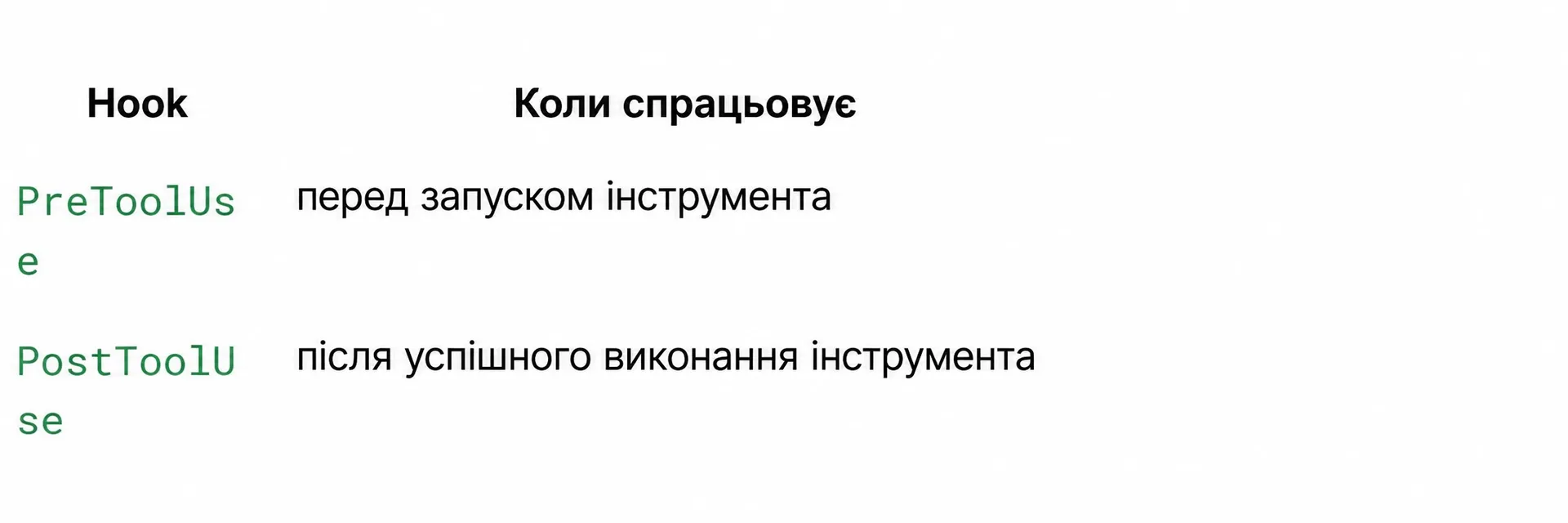 Lifecycle execution moments for Claude Code hooks
3. Configuration Structure in settings.json and Matcher Syntax
Hooks are defined in .claude/settings.json. If this file does not exist in your project root yet, create it.
Basic Configuration Syntax
How the Matcher Works
The matcher field specifies which agent tool activates the hook:
"Edit"— targets existing file modifications."Write"— targets new file creations or full overwrites."Bash"— captures any shell command execution."Bash(git commit*)"— pattern matcher filtering for shell commands starting withgit commit."*"— universal wildcard matching all available agent tools.
Matcher names are case-sensitive. Use Claude Code's standard tool names: Edit, Write, Bash, Glob, Grep.
4. Automated Linting and Formatting (ESLint + Prettier)
The most valuable daily workflow is delegating styling and syntax fixing to Prettier and ESLint. This ensures newly generated or edited code always adheres to your repository standards.
Configuring PostToolUse for ESLint and Prettier
Safety Flags Explained
"$CLAUDE_FILE_PATH"— an environment variable automatically populated with the absolute path to the file Claude just edited or created.2>/dev/null— silences noisy stderr diagnostics so your terminal stays clean.|| true— an essential shell fallback. It guarantees that even if a linter finds an unfixable syntax issue (exiting with code1), the hook returns0and does not crash Claude's conversational flow.
5. Pre-commit Quality Gates (TypeCheck + Tests)
While formatting hooks should be permissive (|| true), committing code to source control demands strict quality gates.
Using PreToolUse, you can block git commit commands whenever TypeScript compilation errors exist or unit tests fail.
Configuring a Blocking Pre-commit Hook
The Error Interception Loop
- Claude initiates a
git commit -m "..."command. - The
PreToolUsehook intercepts the execution before Git runs. - The validation scripts (
npm run typecheckandnpm run lint) execute in the background. - If an error is detected: the command exits with code 1.
- Claude Code receives the raw compilation failure directly in its context.
- Rather than committing broken code, the agent diagnoses the issue, fixes the types, and re-attempts the commit cleanly.
Never append || true to blocking PreToolUse checks. Doing so causes the hook to always evaluate as successful, neutralizing the quality gate.
6. Audio and Desktop Notifications on Task Completion (Stop Hook)
Long-running refactors or test suite executions can take several minutes. Instead of staying glued to your terminal, configure an alert on the Stop event.
The Stop event triggers only when Claude completes its entire multi-step reasoning response, not between internal tool invocations.
7. Context Injection via Environment Variables
To make hook scripts modular and context-aware, Claude Code exports real-time execution metadata into shell environment variables.
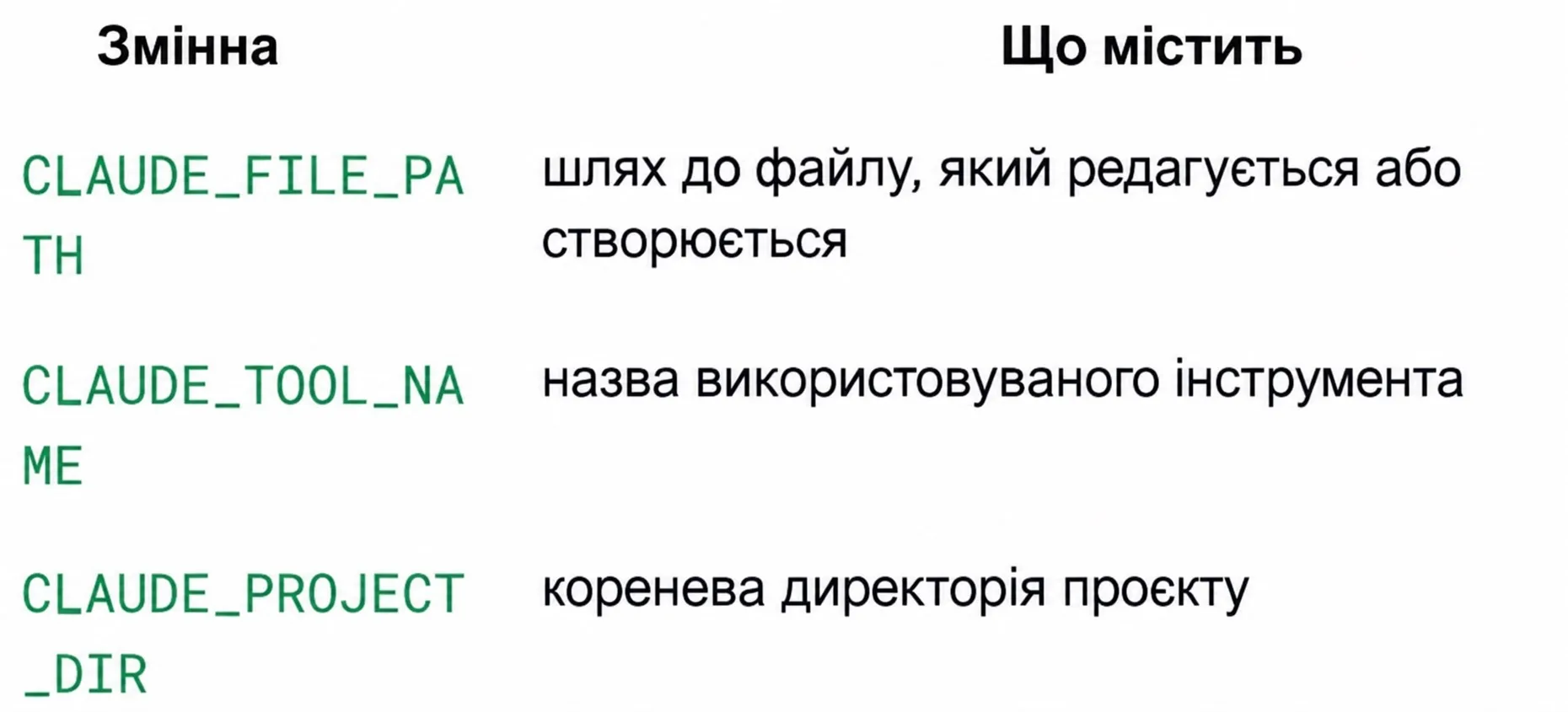 Claude Code environment variables for hook execution
Claude Code Environment Variable Reference
| Variable Name | Type | Description and Sample Value |
|---|---|---|
$CLAUDE_FILE_PATH | Absolute Path | Target file currently being created or edited (/Users/dev/project/src/index.ts) |
$CLAUDE_TOOL_NAME | String identifier | Name of the tool triggering the event (Edit, Write, Bash) |
$CLAUDE_PROJECT_DIR | Absolute Path | Root directory where the current Claude Code session was launched |
Building a Context-Aware Validator Script
Create a script at .claude/hooks/smart-validator.sh:
Reference the script inside .claude/settings.json:
8. The "CI-in-a-Loop" Pattern: Continuous Fast Feedback
In unassisted agent sessions, a common problem occurs: Claude modifies a dozen files, runs the project build, and gets hit with a wall of 40 type errors. Identifying which individual edit caused each issue is difficult and token-expensive.
CI-in-a-Loop introduces tight, per-edit validation:
Implementing Tight TypeScript Feedback
Why head -n 20 Is Critical
If your compiler generates hundreds of lines of error logs, they flood Claude's context window. Pipelining through head -n 20 presents the most critical early diagnostics, allowing the agent to resolve issues immediately without blowing through token limits.
9. Headless Automation: -p Mode, Cron, and Git Hooks
Hooks can be paired with Claude Code's headless print/prompt mode (-p). This allows complex developer workflows to run entirely unattended.
Unattended Nightly Audit Script (nightly-audit.sh)
Scheduling with Cron
Open your crontab editor (crontab -e) and schedule execution every night at 3:00 AM:
Automated Validation via Git Hook (.git/hooks/post-merge)
Automatically audit dependency changes whenever pulling fresh code:
Remember to grant executable permissions: chmod +x .git/hooks/post-merge.
10. Engineering Best Practices and Safety Guidelines
Improperly designed hooks can induce infinite execution loops or lock up your terminal. Follow these four core engineering rules.
Four Safety Rules for Hook Authors
-
Sub-second Execution:
PostToolUsehooks fire after every single file edit. If a hook takes longer than 1–2 seconds, interacting with Claude will feel sluggish. Reserve heavy end-to-end suites forPreToolUseongit commit, never on eachEdit. -
Dedicated Log Redirection: Always stream diagnostic outputs into a log file:
bash"command": "bash .claude/hooks/check.sh >> /tmp/claude-hooks.log 2>&1 || true"If an automated check fails silently,
/tmp/claude-hooks.logwill reveal why. -
Standalone Shell Verification: Before adding any command to
settings.json, run it in your clean terminal. If it fails there, it will reliably break Claude's session. -
Preventing Recursion Loops: Never configure a
PostToolUsehook that modifies project files without ignore filters. If an automated script triggers anotherEdit, Claude will become trapped in an infinite execution cycle.
Never configure hooks that require interactive user input (such as read -p confirmation prompts or sudo password requests). They will hang the background terminal process indefinitely.
11. Hands-on Workshop, Cheatsheet, and Final Checklist
To kickstart automation in your own projects, reference this decision cheatsheet and production-ready configuration.
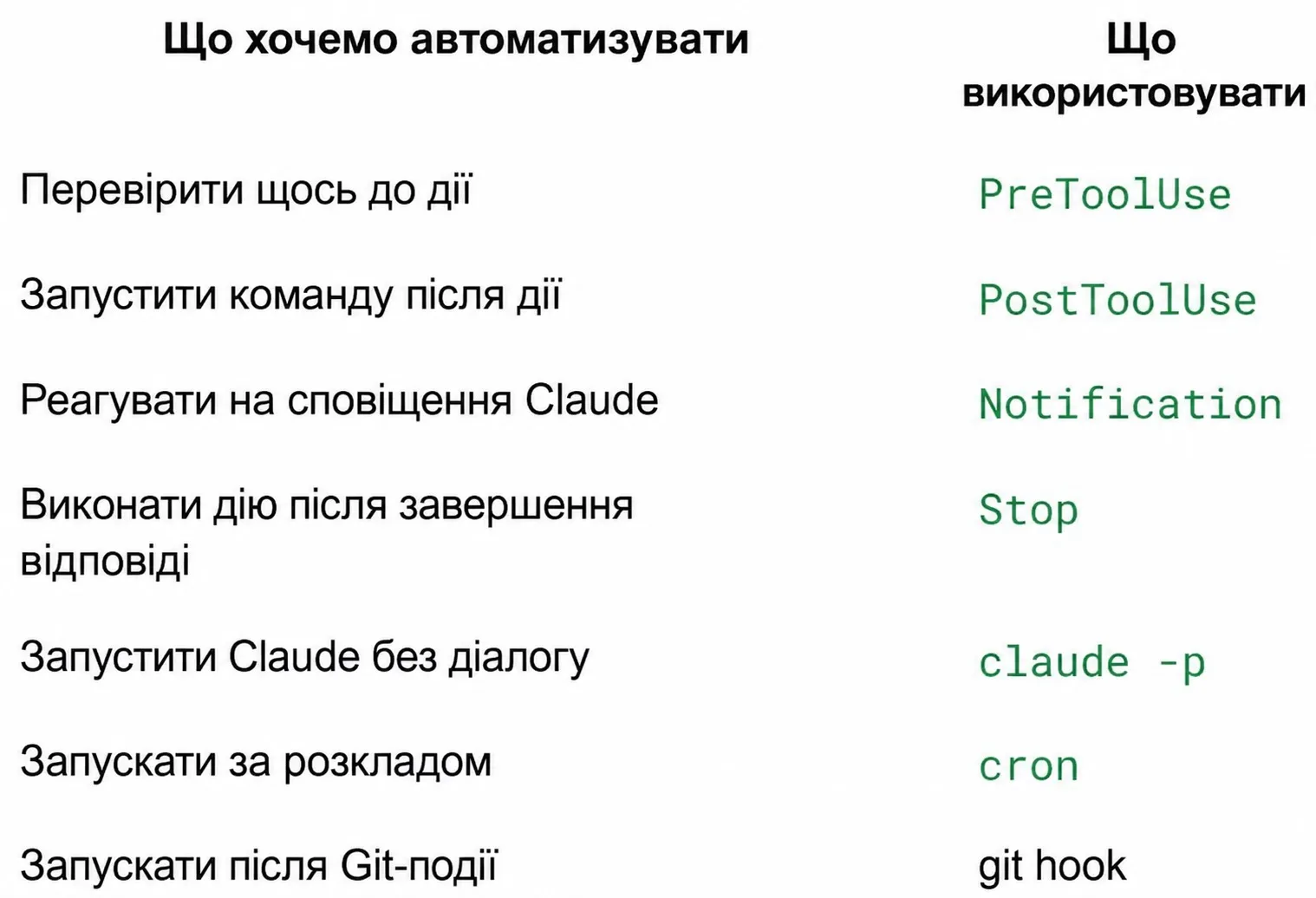 Claude Code hooks decision cheatsheet
Production-Grade .claude/settings.json Template
Copy this template directly into your .claude directory:
Quick Knowledge Check
1. What is the fundamental operational difference between PreToolUse and PostToolUse?
Answer:
PreToolUsefires before a tool executes and can abort the operation if it exits with a non-zero status.PostToolUsefires after successful execution and is used for non-blocking cleanup like formatting and linting.
2. Why do formatting hooks include || true in their shell command?
Answer: To prevent lint or formatting warnings from returning an error code that halts Claude's response generation.
3. Which environment variable holds the path to the file currently being edited?
Answer: The
$CLAUDE_FILE_PATHenvironment variable.
Production Readiness Checklist
- Created
.claude/directory andsettings.jsonin the project root. - Configured automatic file formatting via
PostToolUse+Prettier. - Enforced strict
PreToolUsequality gates onBash(git commit*)runningtypecheck. - Attached audio or desktop completion notifications to the
Stopevent. - Tested all shell commands independently in a standard terminal session.
- Confirmed no commands prompt for interactive passwords or
[y/N]confirmations.